
Keyboard Shortcuts android studio
Android Studio termasuk shortcut keyboard untuk banyak tindakan umum. Tabel 1 menunjukkan cara pintas keyboard default dengan sistem operasi.
Catatan: Selain keymap default pada tabel 1 di bawah ini, Anda dapat memilih dari sejumlah keymap preset atau membuat keymap kustom. Untuk lebih lanjut tentang menyesuaikan cara pintas keyboard Anda, lihat Konfigurasi Kustom keymap, di bawah ini.
Tabel shortcut keyboard 1. Default untuk sistem operasi Windows / Linux dan Mac.
You can choose from a number of preset keymaps or modify a preset keymap to create a new custom keymap in the keymap settings for Android Studio.
To open the keymap settings, click File > Settings > Keymap (on Mac, File > Properties > Keymap).
Catatan: Selain keymap default pada tabel 1 di bawah ini, Anda dapat memilih dari sejumlah keymap preset atau membuat keymap kustom. Untuk lebih lanjut tentang menyesuaikan cara pintas keyboard Anda, lihat Konfigurasi Kustom keymap, di bawah ini.
Tabel shortcut keyboard 1. Default untuk sistem operasi Windows / Linux dan Mac.
| Description | Windows/Linux | Mac |
|---|---|---|
| General | ||
| Save all | Control + S | Command + S |
| Synchronize | Control + Alt + Y | Command + Option + Y |
| Maximize/minimize editor | Control + Shift + F12 | Control + Command + F12 |
| Add to favorites | Alt + Shift + F | Option + Shift + F |
| Inspect current file with current profile | Alt + Shift + I | Option + Shift + I |
| Quick switch scheme | Control + ` (backquote) | Control + ` (backquote) |
| Open settings dialogue | Control + Alt + S | Command + , (comma) |
| Open project structure dialog | Control + Alt + Shift + S | Command + ; (semicolon) |
| Switch between tabs and tool window | Control + Tab | Control + Tab |
| Navigating and Searching Within Studio | ||
| Search everything (including code and menus) | Press Shift twice | Press Shift twice |
| Find | Control + F | Command + F |
| Find next | F3 | Command + G |
| Find previous | Shift + F3 | Command + Shift + G |
| Replace | Control + R | Command + R |
| Find action | Control + Shift + A | Command + Shift + A |
| Search by symbol name | Control + Alt + Shift + N | Command + Option + O |
| Find class | Control + N | Command + O |
| Find file (instead of class) | Control + Shift + N | Command + Shift + O |
| Find in path | Control + Shift + F | Command + Shift + F |
| Open file structure pop-up | Control + F12 | Command + F12 |
| Navigate between open editor tabs | Alt + Right/Left Arrow | Control + Right/Left Arrow |
| Jump to source | F4 / Control + Enter | F4 / Command + Down Arrow |
| Open current editor tab in new window | Shift + F4 | Shift + F4 |
| Recently opened files pop-up | Control + E | Command + E |
| Recently edited files pop-up | Control + Shift + E | Command + Shift + E |
| Go to last edit location | Control + Shift + Backspace | Command + Shift + Backspace |
| Close active editor tab | Control + F4 | Command + W |
| Return to editor window from a tool window | Esc | Esc |
| Hide active or last active tool window | Shift + Esc | Shift + Esc |
| Go to line | Control + G | Command + L |
| Open type hierarchy | Control + H | Control + H |
| Open method hierarchy | Control + Shift + H | Command + Shift + H |
| Open call hierarchy | Control + Alt + H | Control + Option + H |
| Writing Code | ||
| Generate code (getters, setters, constructors, hashCode/equals, toString, new file, new class) | Alt + Insert | Command + N |
| Override methods | Control + O | Control + O |
| Implement methods | Control + I | Control + I |
| Surround with (if...else / try...catch / etc.) | Control + Alt + T | Command + Option + T |
| Delete line at caret | Control + Y | Command + Backspace |
| Collapse/expand current code block | Control + minus/plus | Command + minus/plus |
| Collapse/expand all code blocks | Control + Shift + minus/plus | Command + Shift + minus/plus |
| Duplicate current line or selection | Control + D | Command + D |
| Basic code completion | Control + Space | Control + Space |
| Smart code completion (filters the list of methods and variables by expected type) | Control + Shift + Space | Control + Shift + Space |
| Complete statement | Control + Shift + Enter | Command + Shift + Enter |
| Quick documentation lookup | Control + Q | Control + J |
| Show parameters for selected method | Control + P | Command + P |
| Go to declaration (directly) | Control + B or Control + Click | Command + B or Command + Click |
| Go to implementations | Control + Alt + B | Command + Alt + B |
| Go to super-method/super-class | Control + U | Command + U |
| Open quick definition lookup | Control + Shift + I | Command + Y |
| Toggle project tool window visibility | Alt + 1 | Command + 1 |
| Toggle bookmark | F11 | F3 |
| Toggle bookmark with mnemonic | Control + F11 | Option + F3 |
| Comment/uncomment with line comment | Control + / | Command + / |
| Comment/uncomment with block comment | Control + Shift + / | Command + Shift + / |
| Select successively increasing code blocks | Control + W | Option + Up |
| Decrease current selection to previous state | Control + Shift + W | Option + Down |
| Move to code block start | Control + [ | Option + Command + [ |
| Move to code block end | Control + ] | Option + Command + ] |
| Select to the code block start | Control + Shift + [ | Option + Command + Shift + [ |
| Select to the code block end | Control + Shift + ] | Option + Command + Shift + ] |
| Delete to end of word | Control + Delete | Option + Delete |
| Delete to start of word | Control + Backspace | Option + Backspace |
| Optimize imports | Control + Alt + O | Control + Option + O |
| Project quick fix (show intention actions and quick fixes) | Alt + Enter | Option + Enter |
| Reformat code | Control + Alt + L | Command + Option + L |
| Auto-indent lines | Control + Alt + I | Control + Option + I |
| Indent/unindent lines | Tab/Shift + Tab | Tab/Shift + Tab |
| Smart line join | Control + Shift + J | Control + Shift + J |
| Smart line split | Control + Enter | Command + Enter |
| Start new line | Shift + Enter | Shift + Enter |
| Next/previous highlighted error | F2 / Shift + F2 | F2 / Shift + F2 |
| Build and Run | ||
| Build | Control + F9 | Command + F9 |
| Build and run | Shift + F10 | Control + R |
| Debugging | ||
| Debug | Shift + F9 | Control + D |
| Step over | F8 | F8 |
| Step into | F7 | F7 |
| Smart step into | Shift + F7 | Shift + F7 |
| Step out | Shift + F8 | Shift + F8 |
| Run to cursor | Alt + F9 | Option + F9 |
| Evaluate expression | Alt + F8 | Option + F8 |
| Resume program | F9 | Command + Option + R |
| Toggle breakpoint | Control + F8 | Command + F8 |
| View breakpoints | Control + Shift + F8 | Command + Shift + F8 |
| Refactoring | ||
| Copy | F5 | F5 |
| Move | F6 | F6 |
| Safe delete | Alt + Delete | Command + Delete |
| Rename | Shift + F6 | Shift + F6 |
| Change signature | Control + F6 | Command + F6 |
| Inline | Control + Alt + N | Command + Option + N |
| Extract method | Control + Alt + M | Command + Option + M |
| Extract variable | Control + Alt + V | Command + Option + V |
| Extract field | Control + Alt + F | Command + Option + F |
| Extract constant | Control + Alt + C | Command + Option + C |
| Extract parameter | Control + Alt + P | Command + Option + P |
| Version Control / Local History | ||
| Commit project to VCS | Control + K | Command + K |
| Update project from VCS | Control + T | Command + T |
| View recent changes | Alt + Shift + C | Option + Shift + C |
| Open VCS popup | Alt + ` (backquote) | Control + V |
Configure Custom Keymaps
You can choose from a number of preset keymaps or modify a preset keymap to create a new custom keymap in the keymap settings for Android Studio.
To open the keymap settings, click File > Settings > Keymap (on Mac, File > Properties > Keymap).
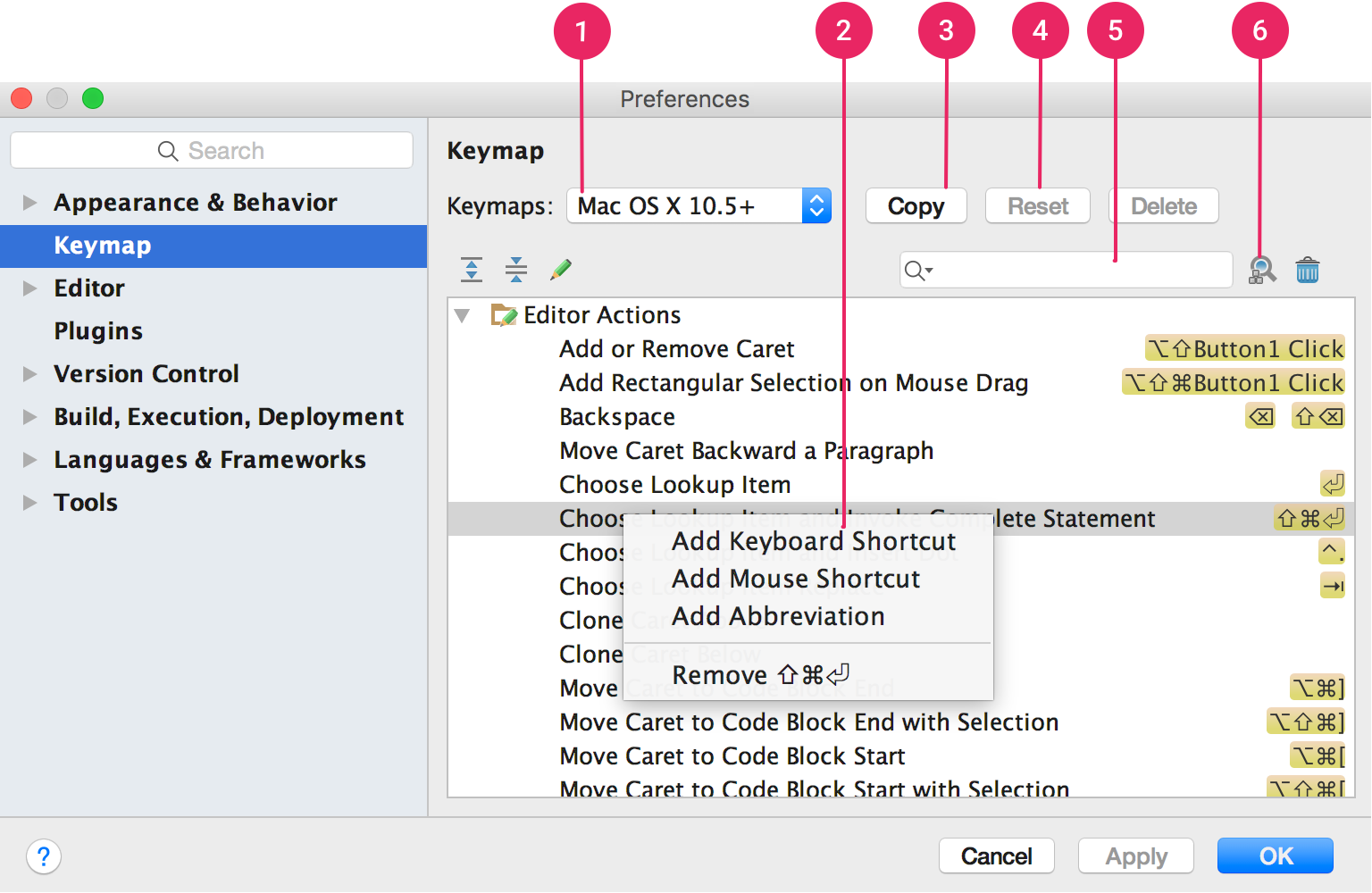
Figure 1. The Android Studio keymap settings window.
- Keymaps dropdown: Delect the desired keymap from this menu to switch between preset keymaps.
- Actions list: Right click on an action to modify it. You can add additional keyboard shortcuts for the action, add mouse shortcuts to associate an action with a mouse click, or remove current shortcuts. If you are using a preset keymap, modifying an action’s shortcuts will automatically create a copy of the keymap and add your modifications to the copy.
- Copy button: Select a keymap from the dropdown menu to use as a starting point, and click Copy to create a new custom keymap. You can modify the keymap name and shortcuts.
- Reset button: Select a keymap from the dropdown menu and click Reset to revert it to its original configuration.
- Search box: Type here to search for a keyboard shortcut by the action name.
- Search by Shortcut: Click Find Actions by Shortcut and type a shortcut to search for actions by shortcut.

Post a Comment
1 Comments
keren nambah ilmu.. :D
ReplyDeleteoi jgn ketik kata2 kotor ya